Why Use a Temp Email for WordPress
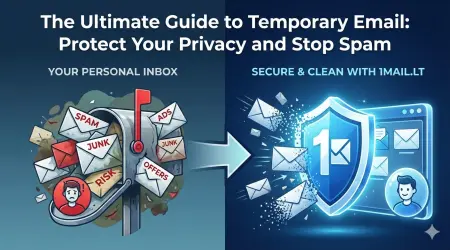
WordPress powers millions of blogs, business sites, and online stores. When you create a new site on WordPress.com or install a self‑hosted copy, you need an email address for account verification, password resets, and notification emails. Using your primary inbox can expose you to spam, marketing newsletters, and potential phishing attempts if the site ever gets compromised. A temporary email address lets you complete the signup process without revealing your real address, keeping your main mailbox clean and reducing the risk of unwanted messages.
Step‑by‑Step: Signing Up with a Temporary Email
- Open your browser and go to
1mail.lt. Click the big button to generate a fresh disposable address instantly. - Copy the generated address (it looks something like
abc123@1mail.lt). - Navigate to WordPress.com (or your self‑hosted wp‑login.php) and begin the registration process.
- When the form asks for an email address, paste the temporary address you just copied.
- Complete the remaining fields (username, password, site title) and submit the form.
- WordPress will send a verification link to the temporary inbox. Return to 1mail.lt, refresh the inbox if needed, and click the verification link.
- After verification, you can log in to your new WordPress dashboard. If you plan to keep the site long‑term, consider adding a permanent email address later under Account → Settings → Email.
What Works and What Doesn’t
- Account creation – Works perfectly; the verification email arrives within seconds.
- Password reset – Works as long as you still have access to the temporary inbox. If the address expires before you reset, you’ll lose the reset link.
- Comment notifications – You’ll receive them while the address is active; after expiration they stop.
- Plugin/theme updates and security alerts – These rely on the email on file. Once the temp address disappears, you won’t get those alerts.
- Two‑factor authentication (2FA) – Some 2FA methods send codes by email; if the temp address is gone, you could be locked out.
Safety Tips & Best Practices
- Use a temporary email only for the initial signup and verification. After you confirm the account, add a real, secure email address for ongoing communication.
- Never reuse the same temporary address for multiple WordPress sites; each site should get its own disposable address to avoid cross‑site tracking.
- Keep a record of the username and password you chose; you won’t be able to recover them via email if the temp address expires.
- If you enable 2FA, prefer an authenticator app (Google Authenticator, Authy) over email‑based codes when using a temporary address.
- Be aware that some hosting providers may flag disposable email domains as suspicious. If you encounter a block, switch to a regular email for that particular provider.
Ready to Try? Use 1mail.lt in One Click
Getting a throwaway address is as simple as visiting 1mail.lt and hitting the “Get New Email” button. No registration, no cost, and the address is ready for your WordPress signup in seconds. Give it a try and keep your primary inbox spam‑free while you explore the world of WordPress.